Publishing Images to a Container Registry
Introduction into Publishing Images
In the previous episode we learned how to build our own images. In this episode we are dealing with how to publish our images in a container registry like the GitLab container registry or Docker Hub. The domain of the container registry of Helmholtz Codebase is:
hcr.helmholtz.cloud
For later reference, here is the respective GitLab documentation and Docker documentation.
This is how a GitLab Container Registry page looks like. It displays the most useful commands initially.
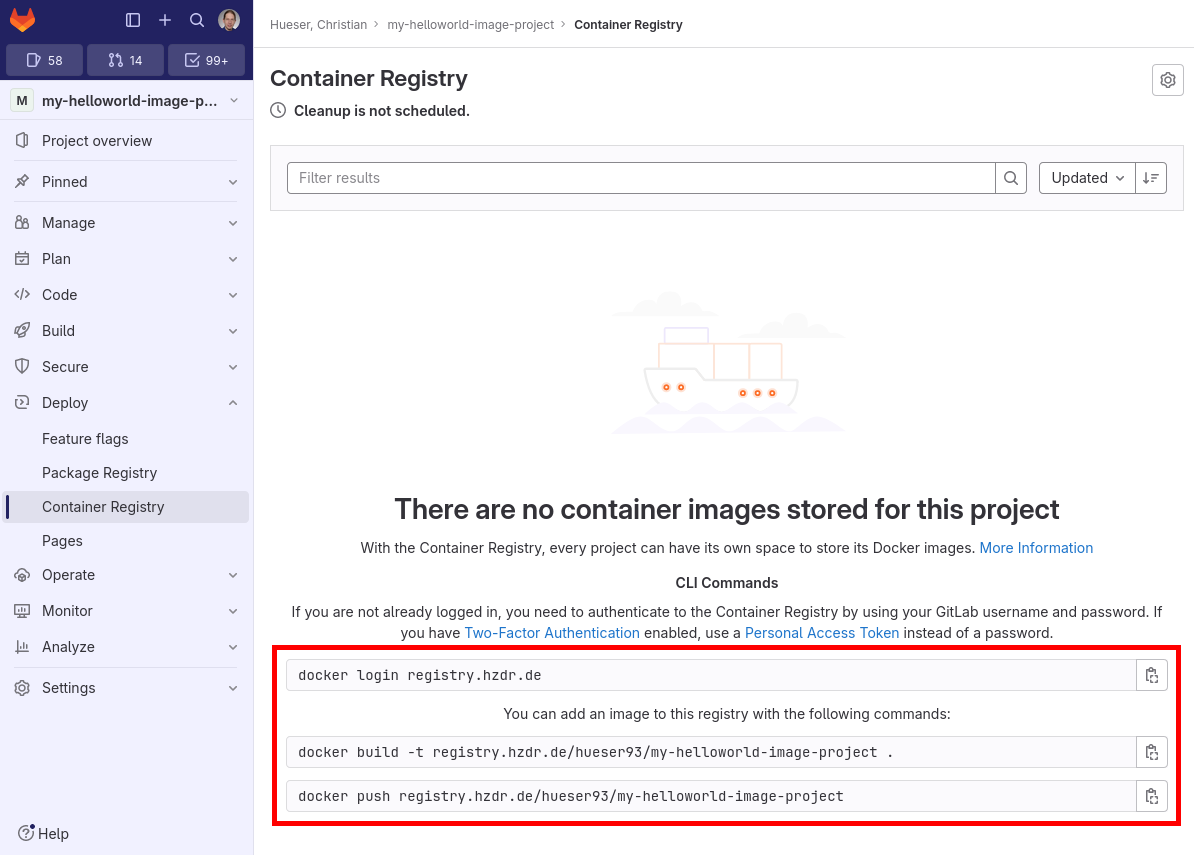
GitLab Container Registry
Publishing to a GitLab container registry involves five steps:
- Create a GitLab user.
- Create a GitLab repository.
- Create a tag for your image.
- Log in into the GitLab container registry with a personal access token.
- Push your image to the container registry.
Create a GitLab User
In order to publish an image to the Helmholtz Codebase GitLab Container Registry you need to sign up for this service.
Create a GitLab Repository
Once you signed up in the Helmholtz Codebase GitLab service you can create your own GitLab repository. By default, the GitLab container registry is enabled for a new GitLab project.
Pull Image to be Published
In the following we will demonstrate how to publish a small image hello-world into the Helmholtz Codebase GitLab Container Registry. You need to pull the image in order to have it locally on your computer:
podman pull hello-world:latest
Output
Resolved "hello-world" as an alias (/etc/containers/registries.conf.d/shortnames.conf)
Trying to pull docker.io/library/hello-world:latest...
Getting image source signatures
Copying blob 4f55086f7dd0 done   |
Copying config e2ac70e731 done   |
Writing manifest to image destination
e2ac70e7319a02c5a477f5825259bd118b94e8b02c279c67afa63adab6d8685b
Create a Tag for your Image
Image tags are alias names for rather cryptic image IDs and specify the respective container registry to which the image will be published along with the respective GitLab project to push to and a version string of that image:
podman image list
Output
REPOSITORY                       TAG       IMAGE ID       CREATED       SIZE
docker.io/library/hello-world    latest    e2ac70e7319a   5 months ago  25.5 kB
podman image tag <image name>:<tag> <GitLab Container Registry domain>/<GitLab username>/<GitLab repository name>:<version>
podman image tag hello-world:latest hcr.helmholtz.cloud/hueser93/my-helloworld-image-project:latest
podman image list
Output
REPOSITORY                                                TAG         IMAGE ID      CREATED       SIZE
hcr.helmholtz.cloud/hueser93/my-helloworld-image-project  latest      e2ac70e7319a  5 months ago  25.5 kB
docker.io/library/hello-world                             latest      e2ac70e7319a  5 months ago  25.5 kB
Log in into the GitLab container registry with a personal access token
Communication with a GitLab container registry is only possible if you log in to the GitLab container registry on the command line interface beforehand.
podman login hcr.helmholtz.cloud --username <GitLab username>
Output
Password:
Login Succeeded!
Attention: You need to create a personal access token with scope api or read_registry and write_registry and use that one instead of your password.
Push your Image to the container registry
The final step is now to publish your image to the GitLab container registry of your repository given the image tag you chose:
podman push <GitLab Container Registry domain>/<GitLab username>/<GitLab repository name>:<version>
podman push hcr.helmholtz.cloud/hueser93/my-helloworld-image-project:latest
Output
Getting image source signatures
Copying blob 897b3f2a7c1b done   |
Copying config e2ac70e731 done   |
Writing manifest to image destination
On the GitLab side you are now able to see the published images in the GitLab container registry:
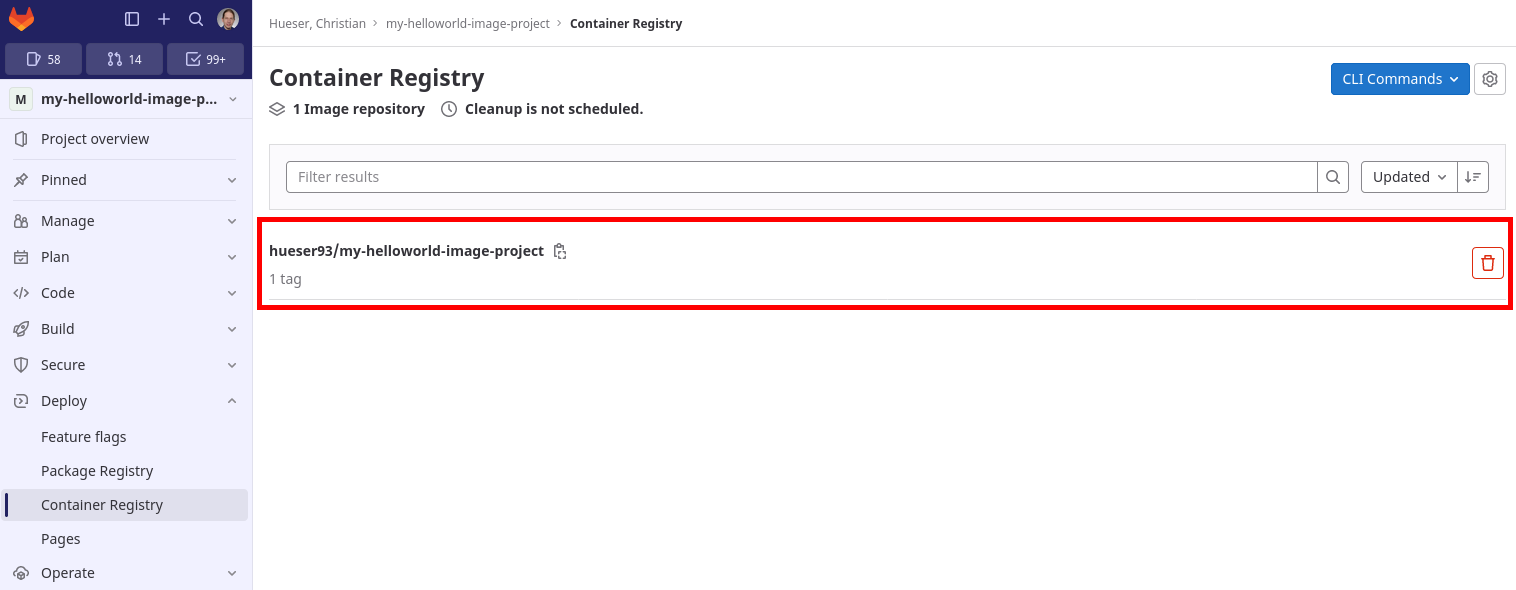
The detailed list of all tags in a GitLab container registry can also be obtained:
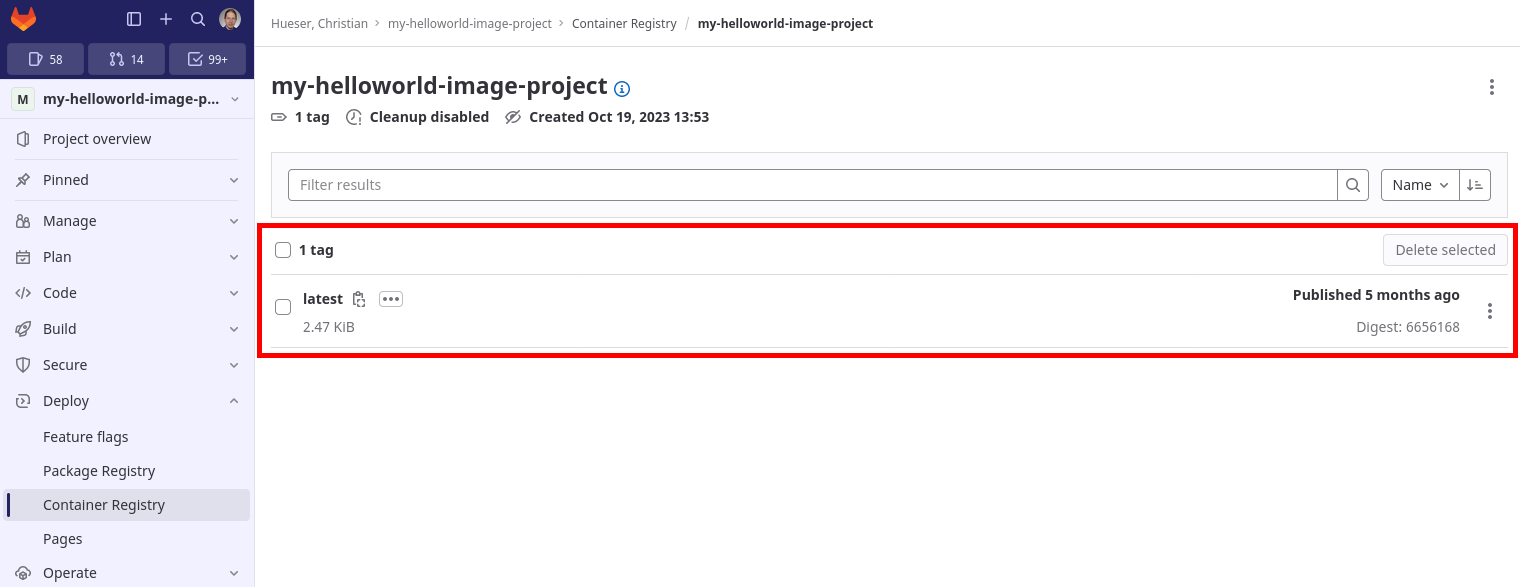
Task: Publishing on Docker Hub
Publishing Docker images to a container registry like Docker Hub involves five steps which are quite similar to those five steps when publishing to a GitLab container registry:
- Create a Docker ID.
- Create a Docker repository.
- Create a tag for your Docker image.
- Log in into Docker Hub with an access tokens.
- Push your image to the container registry.
Are you able to reproduce these steps given the five steps for publishing Docker images to a GitLab container registry?
Understanding Image Tags
Images can have several tags, i.e. alias names for the respective image ID. So far we were labeling the newest image with latest.
It is good practice labeling images with semantic version strings [major].[minor].[patch] like 1.2.3 according to their release version.
See https://semver.org/ for a full specification how semantic versioning works.
Depending on the container registry used your images need to be tagged differently:
podman image list
Output
REPOSITORY                                                TAG         IMAGE ID      CREATED       SIZE
hcr.helmholtz.cloud/hueser93/my-helloworld-image-project  latest      e2ac70e7319a  5 months ago  25.5 kB
docker.io/library/hello-world                             latest      e2ac70e7319a  5 months ago  25.5 kB
podman image tag <image name>:<tag> <GitLab Container Registry domain>/<GitLab username>/<GitLab repository name>:<semantic version>
podman image tag hcr.helmholtz.cloud/hueser93/my-helloworld-image-project:latest hcr.helmholtz.cloud/hueser93/my-helloworld-image-project:0.1.0
podman image list
Output
REPOSITORY                                                TAG         IMAGE ID      CREATED       SIZE
hcr.helmholtz.cloud/hueser93/my-helloworld-image-project  0.1.0       e2ac70e7319a  5 months ago  25.5 kB
hcr.helmholtz.cloud/hueser93/my-helloworld-image-project  latest      e2ac70e7319a  5 months ago  25.5 kB
docker.io/library/hello-world                             latest      e2ac70e7319a  5 months ago  25.5 kB
As you can see a tag may include the following information:
- URL of the container registry, defaults to
docker.io. - The username of the user of the container registry service.
- The name of the repository in the container registry.
- The tag specifying the version of the image to be added to the container registry, defaults to
latest.
Note
The important aspect to emphasize here is that tags may refer to the same image as indicated by the same image ID.
Delete Images or Tags from GitLab Container Registry
Note
The remote images are irreversibly gone after deletion if they are not also stored locally.
Log in into GitLab, navigate to the tag you would like to delete and click the trash icon.
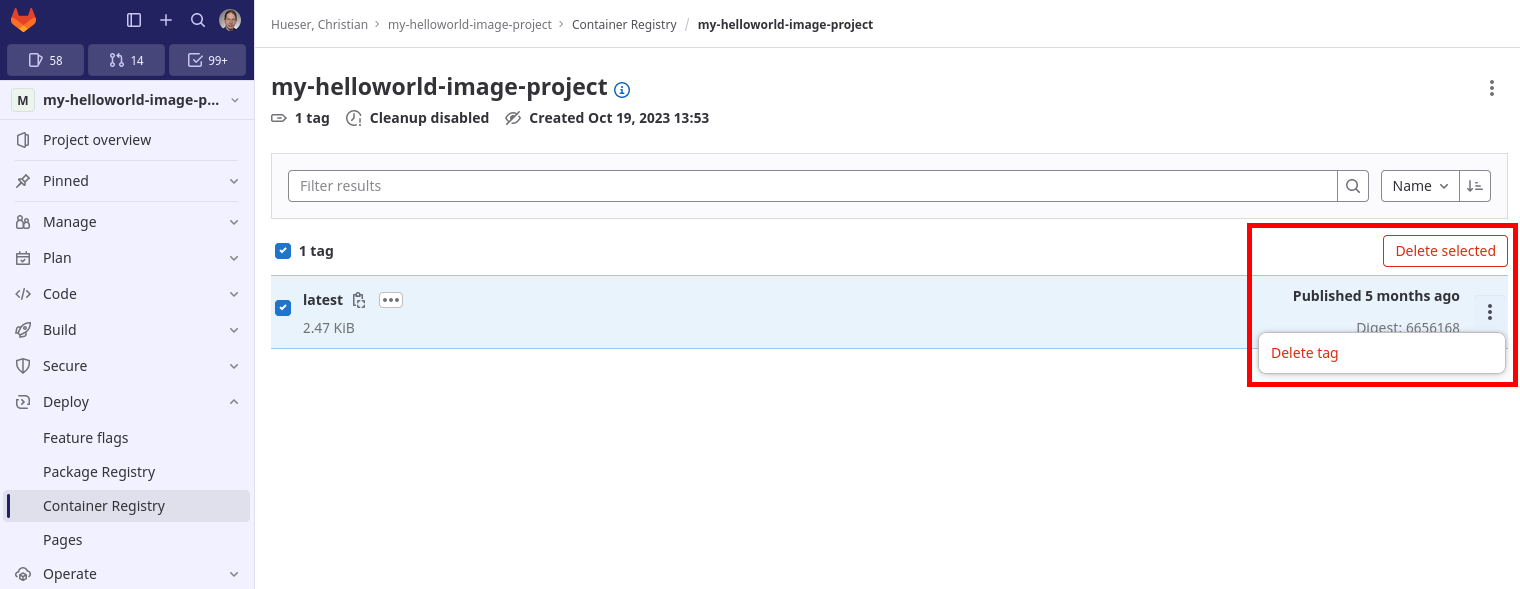
Remove Images or Tags Locally
Note
The local images are irreversibly gone after deletion if they were not pushed to a remote registry earlier.
Tags can be deleted by their tag name:
podman image list
Output
REPOSITORY                                                TAG         IMAGE ID      CREATED       SIZE
hcr.helmholtz.cloud/hueser93/my-helloworld-image-project  0.1.0       e2ac70e7319a  5 months ago  25.5 kB
hcr.helmholtz.cloud/hueser93/my-helloworld-image-project  latest      e2ac70e7319a  5 months ago  25.5 kB
docker.io/library/hello-world                             latest      e2ac70e7319a  5 months ago  25.5 kB
podman image rm <GitLab Container Registry domain>/<GitLab username>/<GitLab repository name>:<version>
podman image rm hcr.helmholtz.cloud/hueser93/my-helloworld-image-project:0.1.0
Output
Untagged: hcr.helmholtz.cloud/hueser93/my-helloworld-image-project:0.1.0
podman image rm hcr.helmholtz.cloud/hueser93/my-helloworld-image-project:latest
Output
Untagged: hcr.helmholtz.cloud/hueser93/my-helloworld-image-project:latest
podman image list
Output
REPOSITORY                           TAG         IMAGE ID      CREATED       SIZE
docker.io/library/hello-world        latest      e2ac70e7319a  5 months ago  25.5 kB
Images can be deleted by their image ID:
podman image list
Output
REPOSITORY                           TAG         IMAGE ID      CREATED       SIZE
docker.io/library/hello-world        latest      e2ac70e7319a  5 months ago  25.5 kB
podman image rm <image ID>
podman image rm e2ac70e7319a
Output
Untagged: docker.io/library/hello-world:latest
Deleted: e2ac70e7319a02c5a477f5825259bd118b94e8b02c279c67afa63adab6d8685b
Also, all unused images can be deleted with the prune sub-command:
podman image prune